


Gmail
4.1423.77K Reviews
App Specs
- Version
- Varies with Device
- Updated On
- License
- Free
- Downloads
- 10,000,000,000+
- Developer
- Google LLC
- Categories
- Communication
- Platform
- Android, iOS
Screenshots
 Analysis by AppCompare
I rely on email for everything from quick family notes to documents I need to keep track of, so I judge a mail app by how quickly I can find something and get back to my day. Gmail is Google’s free communication app, and its familiar inbox makes it easy to start using without a long setup period. My overall impression is that it is a capable everyday choice, especially if you already use Google services, though its many options can feel like more than a simple email reader needs.
First Impressions and Interface
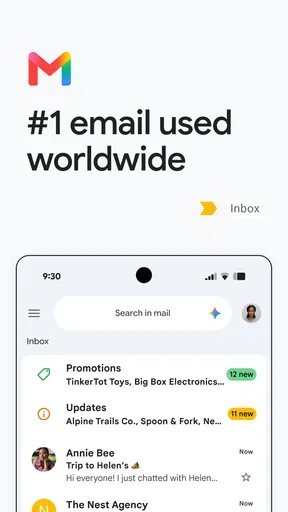
When you first open the Gmail app, it feels like home. The interface is clean and straightforward, with that familiar Google touch. Everything is laid out in a way that makes sense, like your inbox, sent items, and drafts are just a tap away. It's intuitive, which means you won't need a degree in computer science to find your way around.
The color scheme is easy on the eyes, mostly whites with splashes of Google’s signature colors. It’s like walking into a well-organized office space. The app is responsive and smooth, so whether you’re checking emails in line at the coffee shop or firing off a quick reply while on the train, it keeps up with you.
Guides and Analysis on Gmail
Speed, Search, and Everyday Workflows
For routine checks, the app feels quick: opening a message, scanning a thread, or replying with a short answer takes little effort. The useful distinction is between a fast interface and fast email delivery; messages still depend on connectivity and synchronization, so I would not treat a delayed arrival as proof that the app itself is slow. When I need an older message, search is often the bigger time-saver than scrolling through the inbox.
Search works best when I give it a clue more specific than a vague topic. A sender’s name, a distinctive word in the subject, or a phrase I remember from the message can narrow the hunt. That is particularly handy when a receipt, travel detail, or attachment has disappeared beneath newer mail. For important messages I expect to revisit, I also find it useful to star or label them rather than assume I will remember the right search term later.
Features That Stand Out
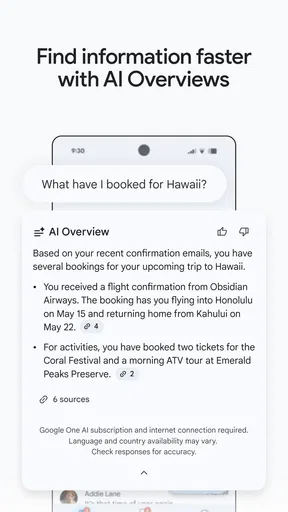
Now, let's talk about the nitty-gritty. Gmail is packed with nifty features that make managing your emails a breeze. First up, we have the search functionality. This isn’t your basic "find the needle in a haystack" deal. It's as if Google took its search engine prowess and made it work for your inbox. You can find that email from two years ago in seconds.
Then there’s the organization with labels and tabs. It’s like having a personal assistant sort your mail into neat little piles. Primary, Social, Promotions – everything is categorized so you can prioritize what matters. And if you love a tidy inbox, the "Snooze" feature is your best friend. Push those non-urgent emails to pop back up when you're ready to deal with them.
Worth Reading Before You Choose

Ludo King Makes the Most of the Minutes Between Plans

Baby Panda World Brings Quick Play to Modern Phones, but Its Game Library Feels Busy

ESPN’s Live Game View Makes Following Close Games Easier

QuizzLand Review: A Good Fit for Short Trivia Breaks, Not Every Player

Basketball Stars: Multiplayer Is Fast, but Can It Recover When Matches Go Wrong?

WEBTOON Turns Phone Updates Into a Better Reading Routine
Labels are worth understanding because they do not behave exactly like separate folders: one message can have more than one label, which helps when a conversation belongs to several projects. Tabs can reduce clutter, but they are not a perfect substitute for checking every category. If you are waiting for a time-sensitive message, it is sensible to look beyond the Primary tab or adjust how your inbox is organized instead of assuming everything important will land in one place.
Heavy Use and Inbox Control
The app is most helpful when email is a steady stream rather than an occasional task. A practical routine is to answer messages that take only a moment, label the ones tied to ongoing work, and snooze items that need attention at a more appropriate time. That keeps the inbox from becoming a to-do list made of unrelated threads. Snoozing is especially useful for a school form or a bill reminder you cannot act on immediately, but it only helps if you choose a return time when you can actually follow through.
On a busy day, conversations can become long and crowded. Before replying, I check the thread so I do not answer an old question or miss a newer detail. If a message needs a careful response, saving it as a draft gives me room to collect the right information rather than sending a rushed reply from the phone. For an everyday example, I might search for a meeting confirmation while walking to an appointment, check the latest time in the thread, then reply briefly and deal with the related planning later on a larger screen.
Security and Syncing
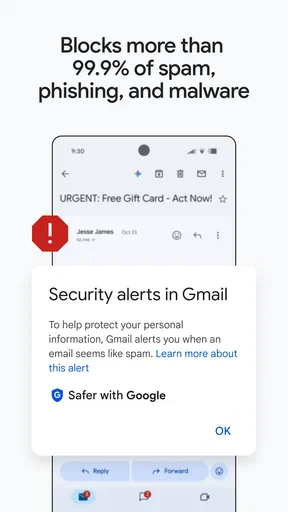
Security is often a concern when it comes to email, but Gmail’s got you covered. Two-factor authentication and advanced security settings ensure your emails stay private. Plus, the spam filter is one of the best out there. It’s like a bouncer at a club, keeping out the riff-raff so only the good stuff gets through.
Syncing across devices is seamless. Start an email on your phone, finish it on your laptop. Everything updates in real-time, so you're never out of the loop. It’s perfect for those of us who are always on the move.
In practical terms, that continuity is useful when a short mobile reply turns into something that needs editing or an attachment on a computer. I still check that a draft or sent message has appeared where I expect before closing a task that matters. Reliable synchronization reduces duplicate work, but no email app can make an unstable connection dependable; if a message is urgent, checking the sent thread is a sensible final step.
Device Limits and Alternatives
On a phone, Gmail’s main advantage is that it can handle quick checks and more involved inbox sorting in one place. The trade-off is that a small screen makes long threads, detailed formatting, and careful document review less comfortable. I would use the app to triage a crowded inbox or send a concise update, then move to a computer when a reply needs close editing or several documents need comparison.
Compared with the mail app already installed on a phone, Gmail is a stronger fit if your daily routine centers on a Google account, labels, search, and Google services. A simpler built-in mail client may suit someone who wants a stripped-back place to read messages without learning another set of inbox controls. People who depend on another provider’s ecosystem may also prefer that provider’s app for its account-specific tools. Gmail is flexible, but flexibility brings menus and sorting choices that can take time to tune.
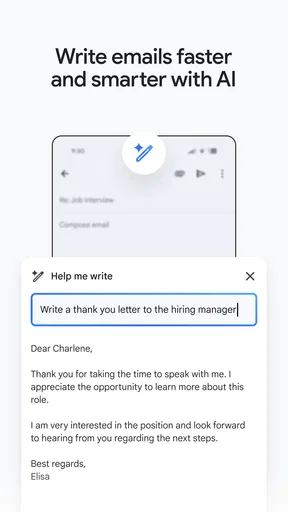
It is also not the right choice for someone who wants email to disappear entirely into a minimalist interface. Tabs, labels, and suggested writing can help, yet they add decisions as well as convenience. I recommend taking a little time to decide which categories matter and which notifications deserve attention; otherwise, a busy inbox can still interrupt the day even when the app is organizing it.
Integration and Productivity
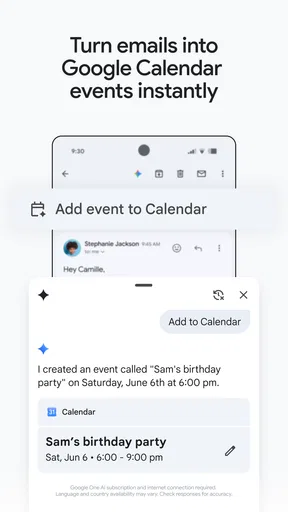
One of the coolest things about Gmail is how well it integrates with other Google services. Need to schedule a meeting? Google Calendar is just a tap away. Want to save an attachment to the cloud? Google Drive has your back. It’s all about making your life easier and more productive.
And let’s not forget about the Smart Compose feature. It’s like having a little helper that suggests phrases as you type. Over time, it learns your style, so it feels like it finishes your sentences. Creepy? Maybe a little. Helpful? Absolutely!
Suggestions can speed up routine writing, but I treat them as a starting point, not a substitute for checking tone or details. That matters most for messages to a client, teacher, or anyone who needs a precise answer: a polished-looking sentence can still say the wrong thing. I also prefer to keep a personal voice in messages where a canned-sounding phrase would feel out of place.
Reliability and Who It Suits
Google LLC develops the app, which has been available since September 21, 2010. It is rated for Everyone and remains free to use. Its scale is notable: it has passed ten billion installs, with an average rating of 4.1 from around 14 million ratings and roughly 423,000 written reviews. Those figures suggest a widely used service, but they do not guarantee that every person will like its organization or that every message will arrive instantly.
For students, families, and people coordinating work across devices, I think Gmail is an easy recommendation when their contacts and documents already sit in Google’s ecosystem. Its search and labels become more valuable as the inbox grows, and the app is approachable enough for someone who mainly reads and replies. If you rarely use email, or want the least complicated possible interface, a basic mail client may be a better fit. If an account is critical, I would also make a habit of keeping recovery details current and checking important threads rather than relying on memory or one notification.
Final Thoughts
So, is the Gmail app worth it? Absolutely. It’s reliable, user-friendly, and packed with features that make handling emails less of a chore. Whether you’re a casual emailer or a power user, it adapts to your needs. Plus, with regular updates, it just keeps getting better.
In a world where email is king, Gmail reigns supreme. So if you haven’t already, give it a spin. You might just find that it’s exactly what you’ve been looking for. And hey, who doesn’t love a good app that makes life a little easier?
Pros
- User-friendly interface with intuitive navigation.
- Seamless integration with other Google services.
- Highly effective spam filtering system.
- Generous free storage for emails and attachments.
- Customizable notifications for better management.
Cons
- Lacks advanced email organization features.
- Ads can be intrusive in the free version.
- Occasional syncing issues with some devices.
- Limited offline functionality in the app.
- No built-in task or calendar management.
FAQs for Gmail
What platforms is the Gmail app available on?
The Gmail app is available on both Android and iOS platforms, making it accessible to a wide range of users. It can be downloaded for free from the Google Play Store for Android devices and the Apple App Store for iOS devices. Ensure your device meets the app's system requirements for optimal performance.
Does the Gmail app support offline access to emails?
Yes, the Gmail app supports offline access, allowing you to read emails without an internet connection. However, to enable this feature, you'll need to adjust your settings. Offline access is particularly useful when traveling or in areas with poor connectivity, ensuring you can stay on top of your emails anytime.
How secure is the Gmail app in terms of protecting my data?
The Gmail app is designed with multiple layers of security to protect your data. It offers features like two-step verification and security alerts for suspicious activity. Additionally, emails are encrypted during transmission, which helps keep your information safe from unauthorized access. Always keep the app updated for enhanced security features.
Can I manage multiple accounts within the Gmail app?
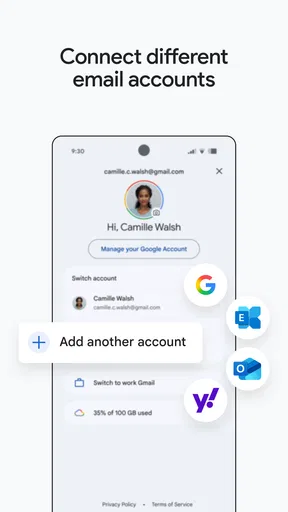
Yes, the Gmail app allows you to manage multiple email accounts seamlessly. You can add different Google accounts and switch between them with ease. This feature is ideal for users who need to manage personal and professional emails from a single interface, enhancing convenience and productivity.
What level of customization does the Gmail app offer?
The Gmail app provides a range of customization options to suit your preferences. You can adjust notification settings, choose between different inbox types, and apply labels or filters to organize emails. Custom themes and swipe actions can also be set, allowing you to personalize your email experience and improve efficiency.


